
CamDiDam
Bleib im Bild. Ganz von allein. Stay in frame. Effortlessly.
CamDiDam zoomt auf dich und folgt deinem Gesicht sanft durchs Bild. In Videocalls wählst du es einfach als Kamera aus – lehn dich zurück, beweg dich frei. CamDiDam zooms in on you and gently follows your face through the frame. In video calls you simply pick it as your camera – lean back, move freely.
Vereinfachte Simulation: So verhält sich der Ausschnitt – mit Trägheit und ohne Mikrozittern. Kein echtes Kamerabild. Simplified simulation of how the frame behaves – with inertia and no micro-jitter. Not a real camera feed.
Cam. Di. Dam.Cam. Di. Dam.
Drei Takte, und der Ausschnitt gehört dir.Three beats, and the frame is yours.
Kamera wählenPick the camera
Wähle „CamDiDam Camera“ in deiner Video-App. Sie erscheint wie jede andere Webcam.Choose “CamDiDam Camera” in your video app. It shows up like any other webcam.
Dich erkennenFind you
Dein Gesicht wird direkt auf deinem Mac erkannt. Nichts davon geht ins Netz.Your face is detected right on your Mac. None of it goes online.
Sanft mitgleitenGlide along
Der Bildausschnitt folgt dir weich und ruhig. Du bleibst mittendrin – ohne dran zu denken.The frame follows you softly and calmly. You stay right in it – without thinking about it.
Macht wenig Aufhebens.
Sieht dafür gut aus.Makes little fuss.
Looks great doing it.
Eine echte virtuelle KameraA real virtual camera
CamDiDam nutzt Apples offizielle Kamera-Erweiterung. In Videocalls, Browsern und Aufnahme-Apps wählst du sie wie jede andere Kamera aus – ohne Treiber-Gebastel.CamDiDam uses Apple's official camera extension. In video calls, browsers and recording apps you pick it like any other camera – no driver hassle.
Weich statt hektischSmooth, not jumpy
Mit Trägheit und Totzone: kein Zittern, kein Ruckeln bei jeder Kopfbewegung.With inertia and a dead zone: no jitter, no jerking at every head turn.
Zoom nach WunschZoom your way
Nah dran oder lieber mit Luft ums Gesicht – du stellst es ein.Close up or with some breathing room – you decide.
Läuft nur, wenn nötigRuns only when needed
Deine Webcam geht erst an, wenn eine App CamDiDam wirklich nutzt, und danach wieder aus. Unterstützt eingebaute Kameras und USB-Webcams, Ausgabe in Full HD (1080p, 30 fps).Your webcam turns on only when an app actually uses CamDiDam – and off again afterwards. Works with built-in cameras and USB webcams, delivering Full HD (1080p, 30 fps).
Hintergrund weichzeichnenBlur your background
Unordnung im Rücken? CamDiDam stellt dich frei und zeichnet den Rest weich – die Stärke bestimmst du.Messy room behind you? CamDiDam separates you from the background and softens the rest – you choose how much.
Augen geöffnet haltenKeep eyes open
Ein dezenter Augen-Lift: Wenn du auf den Bildschirm schaust, öffnet CamDiDam deine Augen sanft und hebt den Blick leicht Richtung Kamera. Beim Blinzeln oder mit gedrehtem Kopf blendet der Effekt von selbst aus. Die Stärke ist einstellbar – so bleibt es natürlich.A subtle eye lift: when you look at your screen, CamDiDam gently opens your eyes and raises your gaze slightly toward the camera. It fades out on its own when you blink or turn your head. The strength is adjustable, so it stays natural.
Farbe & SpiegelnColor & mirroring
Helligkeit, Kontrast, Sättigung und Wärme nachregeln, mit einem Klick zurücksetzen. Und das Bild auf Wunsch spiegeln.Fine-tune brightness, contrast, saturation and warmth, reset with one click. And mirror the image if you like.
Augen im oberen DrittelEyes in the upper third
Wie bei einem guten Porträt sitzen deine Augen standardmäßig im oberen Drittel des Bildes. Lieber mittig? Einfach umstellen.Like in a good portrait, your eyes sit in the upper third of the frame by default. Prefer the center? Just switch.
Live-Vorschau beim EinstellenLive preview while you tweak
Die Vorschau steht direkt neben Tracking und Effekten. Alle Einstellungen bleiben nach einem Neustart erhalten.The preview sits right next to the tracking and effects settings. All settings are kept after a restart.
Wohnt in der MenüleisteLives in your menu bar
Kein Dock-Symbol, kein Fenster im Weg. Startet auf Wunsch beim Anmelden.No Dock icon, no window in the way. Optionally starts at login.
Gemacht für Alltags-CallsMade for everyday calls
Stand-ups, Kundengespräche, Unterricht: Du darfst dich bewegen und bleibst im Bild.Stand-ups, client calls, teaching: move around and stay in frame.
Deutsch & EnglishEnglish & German
Die App spricht deine Sprache – über die macOS-Spracheinstellungen.The app speaks your language – via your macOS language settings.
Dein Video bleibt dein Video.Your video stays your video.
Die Gesichtserkennung läuft vollständig auf deinem Mac. CamDiDam braucht kein Konto und schickt keine Bilder irgendwohin.Face detection runs entirely on your Mac. CamDiDam needs no account and sends no images anywhere.
- Gesichtserkennung und Personenfreistellung lokal über Apples Vision-FrameworkLocal face detection and person segmentation via Apple's Vision framework
- Kein Konto, keine Cloud, keine TelemetrieNo account, no cloud, no telemetry
- Kamerazugriff wird erst angefragt, wenn wirklich eine Aufnahme startetCamera access is only requested when a capture really starts
- Einzige Netzwerkverbindung: die Lizenzprüfung bei Gumroad – nur, wenn du Pro aktivierstThe only network connection: the license check with Gumroad – and only if you activate Pro
Kostenlos starten. Unbegrenzt, wenn du magst.Start for free. Unlimited if you like it.
Es gibt nur eine App. Mit der kostenlosen Version nutzt du alle Funktionen bis zu 3 Stunden pro Woche. Mit Pro entfällt das Limit – einmal zahlen, kein Abo.There is just one app. The free version gives you every feature for up to 3 hours per week. Pro removes the limit – pay once, no subscription.
KostenlosFree
3 Stunden pro Woche3 hours per week
- Alle Funktionen: Zoom, Gesichtsverfolgung, Hintergrund-Weichzeichner, Augen-Lift, FarbanpassungenAll features: zoom, face tracking, background blur, eye lift, color adjustments
- Gezählt wird nur, solange eine App die Kamera wirklich nutztOnly counts while an app is actually using the camera
- Zurücksetzung jeden SonntagResets every Sunday
- Kein Konto, keine AnmeldungNo account, no sign-up
UnbegrenztUnlimited
einmalig, kein Aboone-time, no subscription
- Keine Zeitbegrenzung – so oft und so lange du willstNo time limit – as often and as long as you like
- Eine persönliche Lizenz für deine eigenen MacsOne personal license for your own Macs
- Lizenzschlüssel per E-Mail von GumroadLicense key by email from Gumroad
- Eintragen unter Einstellungen → Allgemein → LizenzEnter it under Settings → General → License
Prüfsumme (SHA-256) der ZIP-Datei:Checksum (SHA-256) of the ZIP
file:
40b39bc4e0ef7798562c3c3098b2742b566731b74ee8d3d48b5366165db6aaae
So sieht die App ausWhat the app looks like
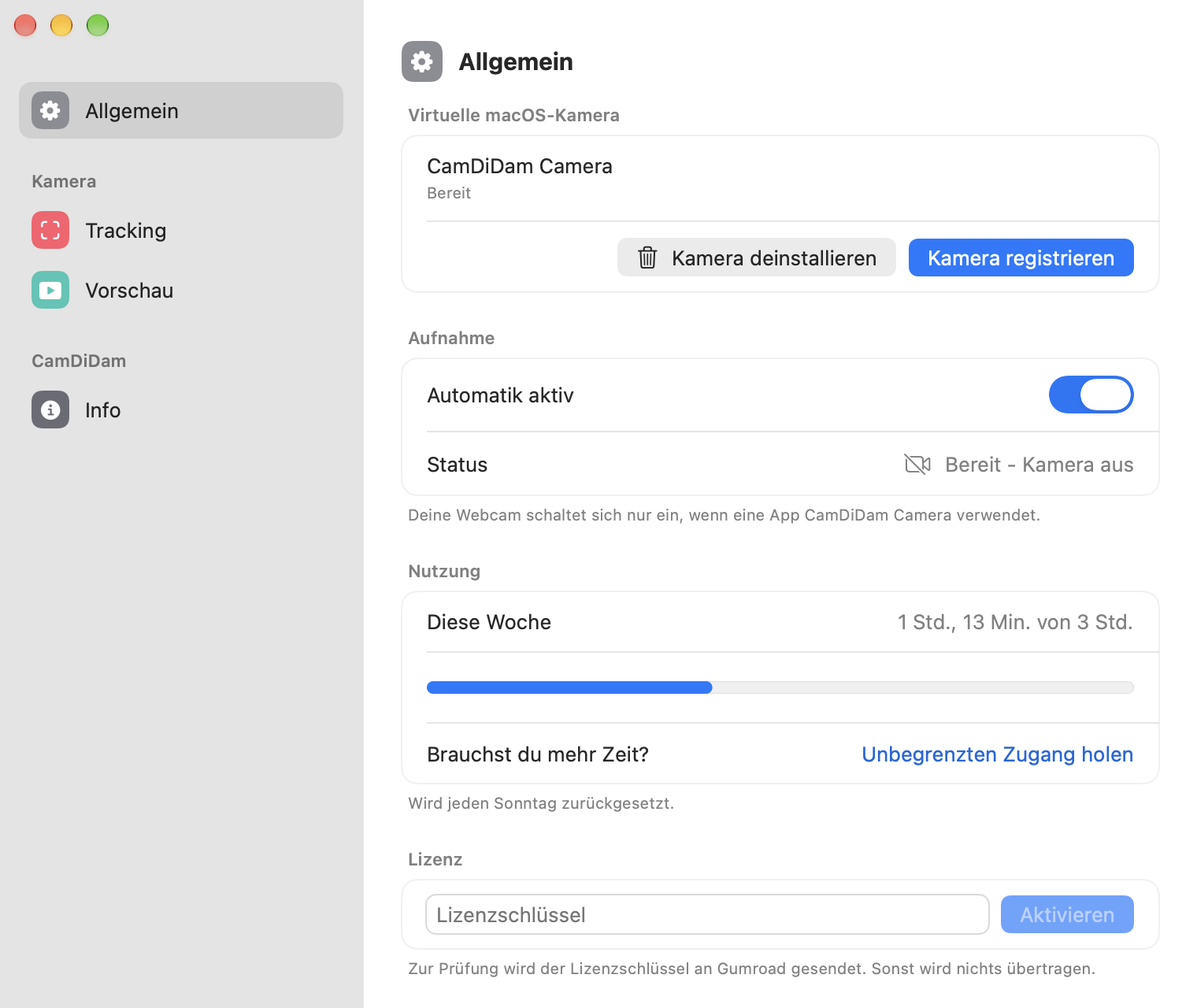

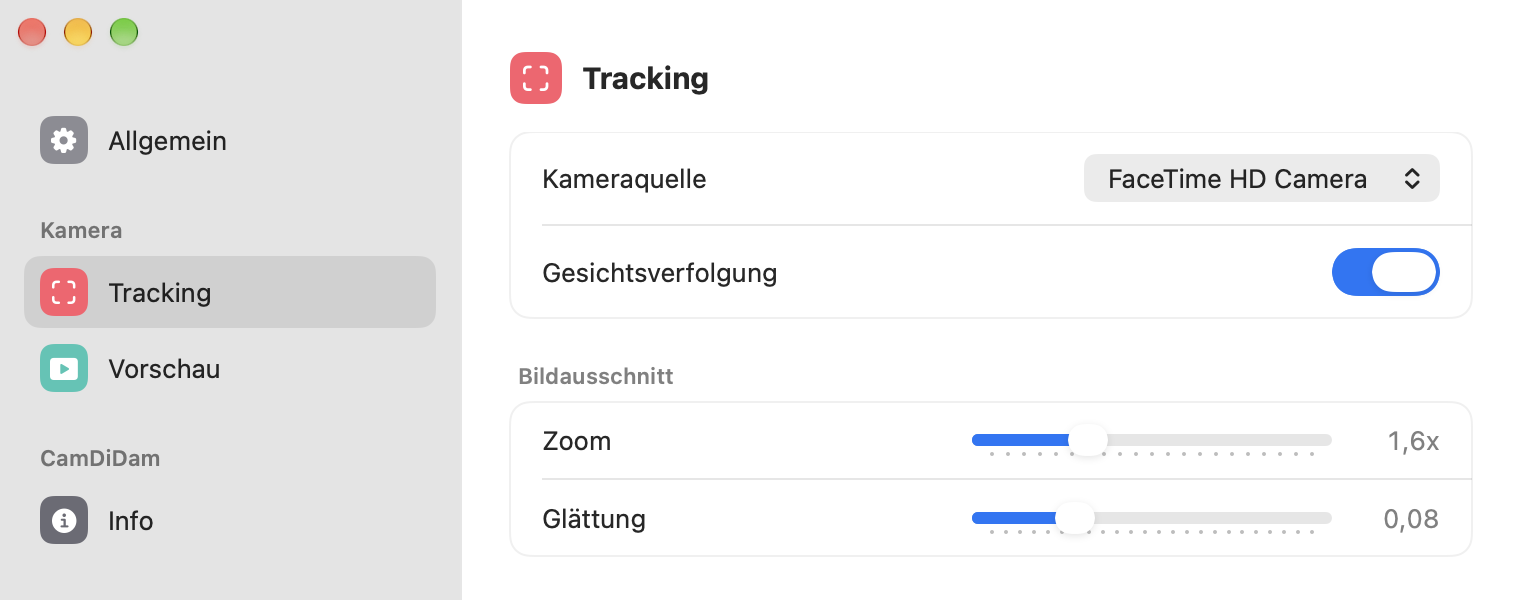
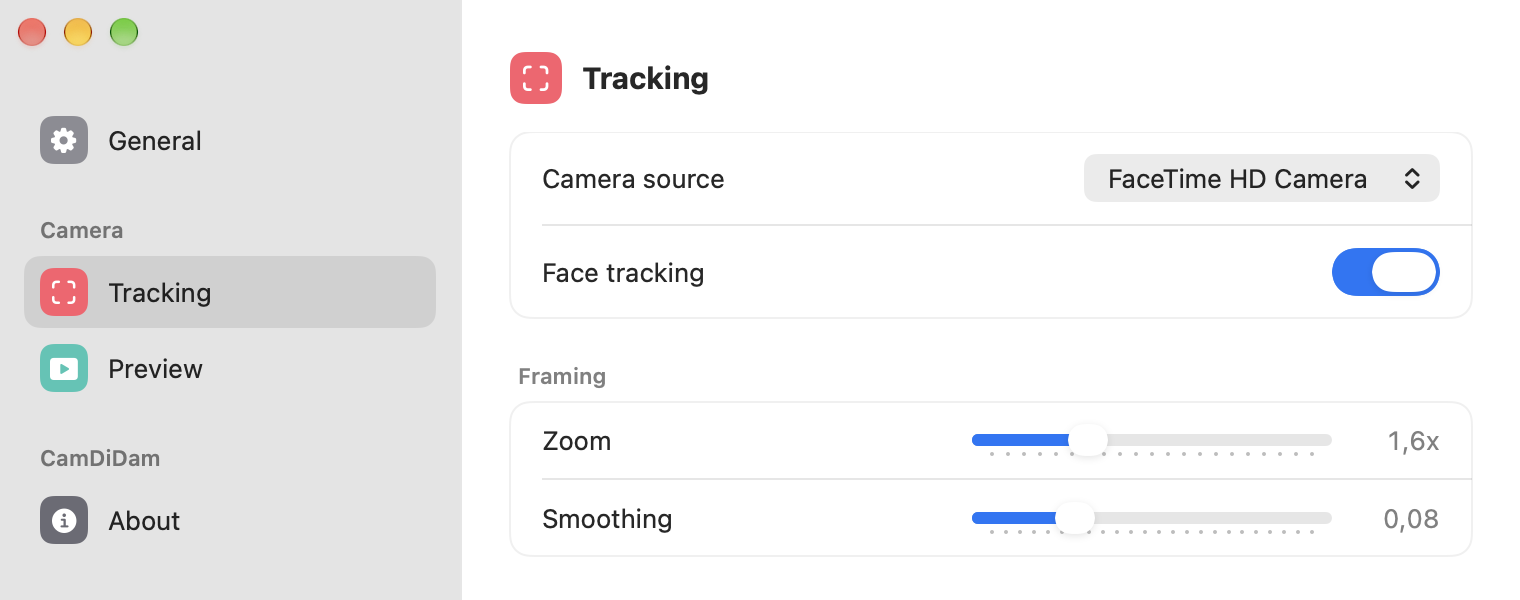
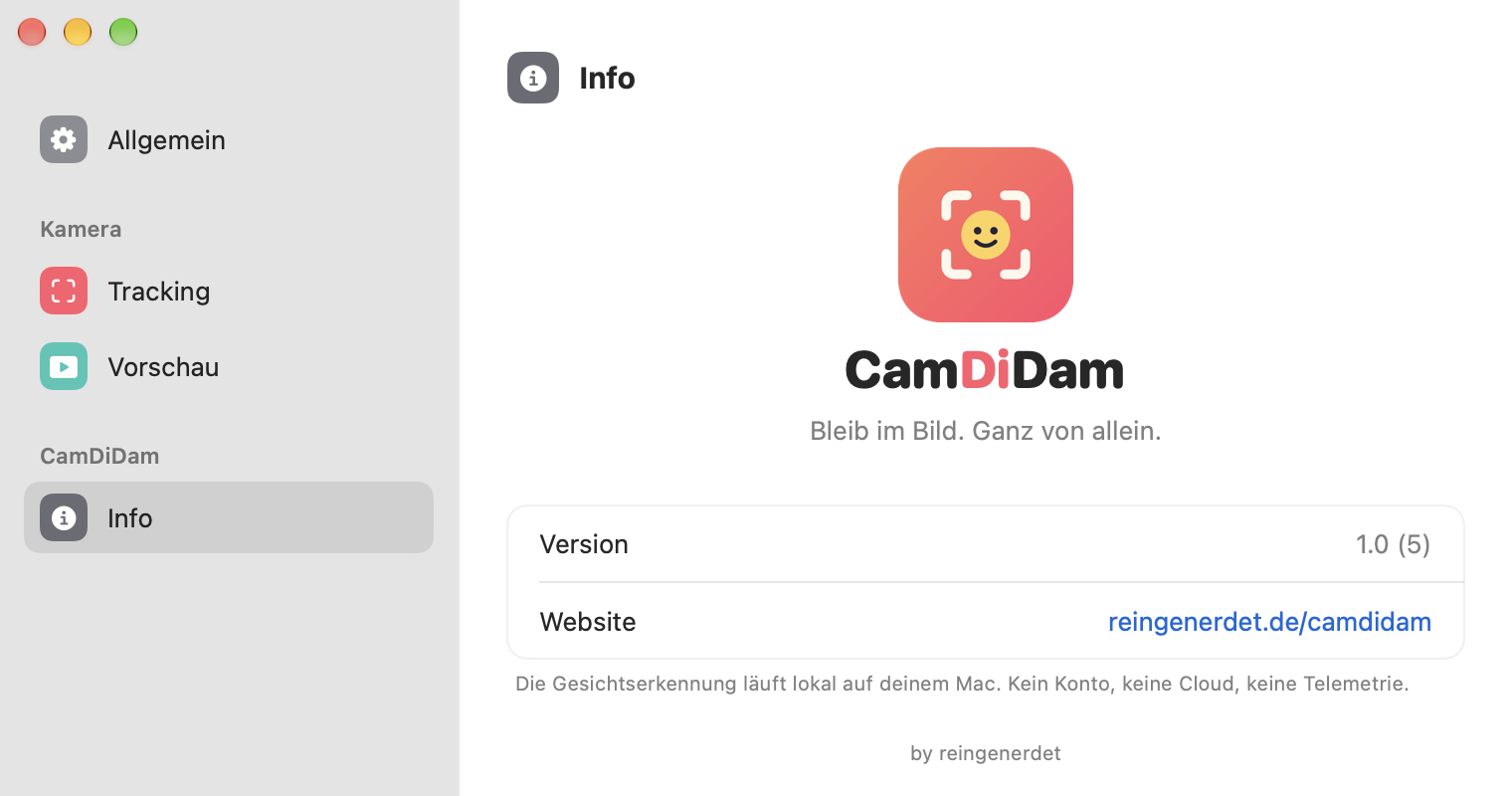
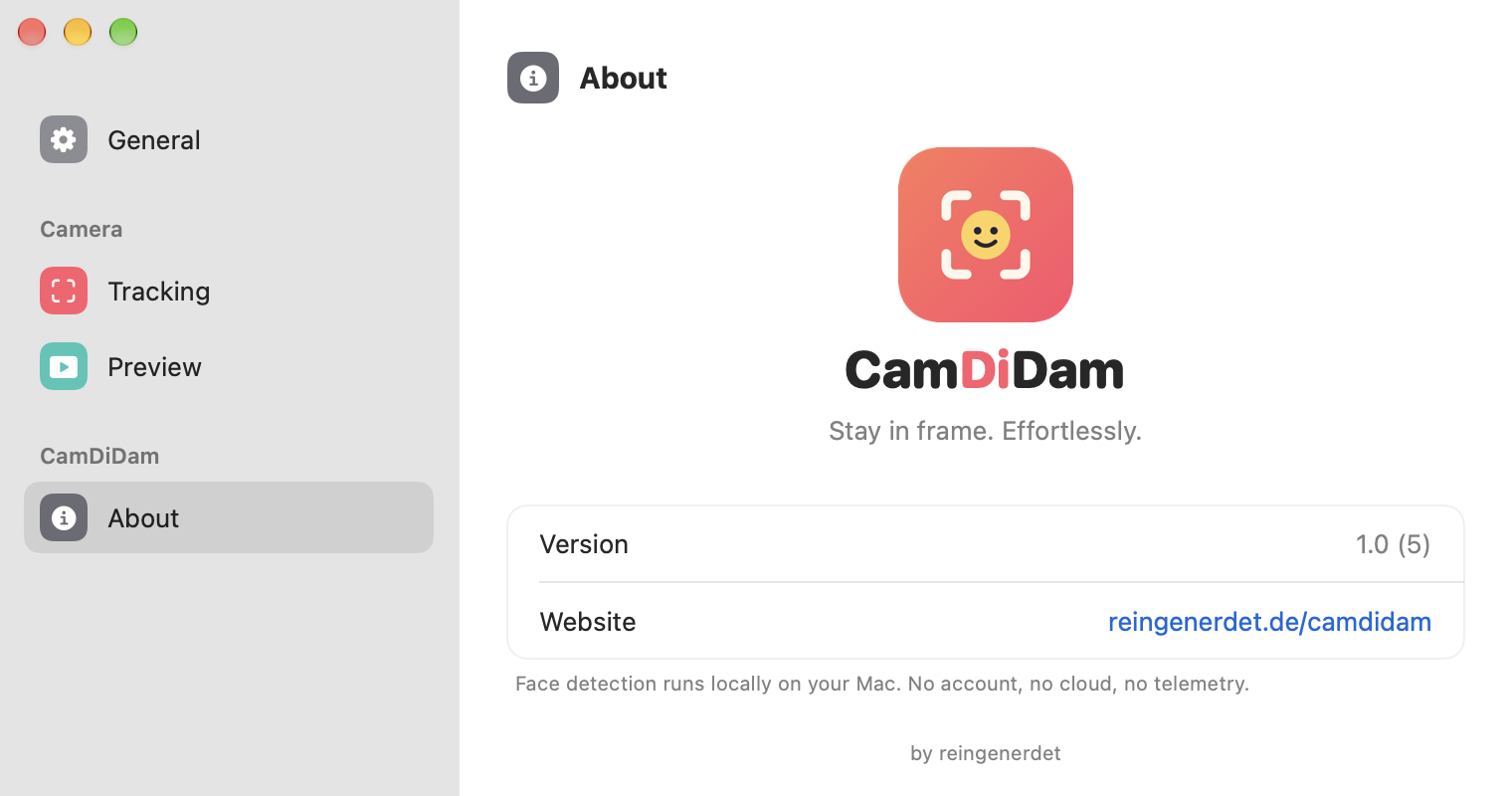
In drei Schritten startklar.Ready in three steps.
Einmal einrichten, danach läuft CamDiDam im Hintergrund mit.Set it up once, then CamDiDam just runs in the background.
App installierenInstall the app
ZIP entpacken, CamDiDam in den Ordner „Programme“ ziehen und starten. Dort muss die App liegen, sonst lässt macOS die Kamera-Erweiterung nicht zu.Unzip, drag CamDiDam into your Applications folder and open it. It has to live there, otherwise macOS won't allow the camera extension.
Kamera registrierenRegister the camera
In den Einstellungen auf „Kamera registrieren“ klicken und einmalig freigeben: Systemeinstellungen → Allgemein → Anmeldeobjekte & Erweiterungen → Kamera-Erweiterungen.Click “Register camera” in the settings and approve once: System Settings → General → Login Items & Extensions → Camera Extensions.
Im Call wählenPick it in your call
Wähle „CamDiDam Camera“ in deiner Video-App. Fertig.Choose “CamDiDam Camera” in your video app. Done.
Kurz gefragt.Quick questions.
Mit welchen Apps funktioniert CamDiDam?Which apps does CamDiDam work with?
CamDiDam erscheint als normale macOS-Kamera. Es ist gedacht für Videokonferenz-Apps, Browser und Aufnahme-Programme, die macOS-Kameras verwenden, zum Beispiel Zoom, Google Meet, Teams oder FaceTime. Einzelne Apps können sich unterschiedlich verhalten.CamDiDam shows up as a regular macOS camera. It's meant for video-conferencing apps, browsers and recording tools that use macOS cameras, such as Zoom, Google Meet, Teams or FaceTime. Individual apps may behave differently.
Warum muss ich eine Erweiterung freigeben?Why do I need to approve an extension?
macOS stellt virtuelle Kameras nur über eine Kamera-Erweiterung bereit, und die musst du einmalig selbst erlauben. So behältst du die Kontrolle.macOS only offers virtual cameras through a camera extension, and you have to allow it once yourself. That keeps you in control.
Wann ist meine echte Webcam an?When is my real webcam on?
Nur, solange eine andere App den Stream von CamDiDam Camera wirklich nutzt, oder wenn du in den Einstellungen die Vorschau startest. Danach wird die physische Kamera wieder freigegeben.Only while another app is actually using the CamDiDam Camera stream, or when you start the preview in settings. Afterwards the physical camera is released again.
Wird mein Video gespeichert oder gesendet?Is my video stored or sent anywhere?
Nein. Erkennung, Zuschnitt und Effekte passieren lokal auf deinem Mac. CamDiDam braucht kein Konto und schickt keine Bilder irgendwohin.No. Detection, cropping and effects happen locally on your Mac. CamDiDam needs no account and sends no images anywhere.
Was kostet CamDiDam?How much does CamDiDam cost?
Die App ist kostenlos und bietet alle Funktionen für bis zu 3 Stunden pro Woche. Wer mehr braucht, schaltet mit CamDiDam Pro die Zeitbegrenzung für einmalig 19 € ab – ohne Abo. Der Kauf läuft über Gumroad.The app is free and gives you every feature for up to 3 hours per week. If you need more, CamDiDam Pro removes the limit for a one-time €19 – no subscription. Checkout runs through Gumroad.
Was zählt zu den 3 Stunden – und was passiert danach?What counts toward the 3 hours – and what happens after?
Gezählt wird nur die Zeit, in der eine App CamDiDam Camera tatsächlich nutzt (oder die Vorschau läuft). Ist das Wochenkontingent aufgebraucht, startet die Kamera nicht mehr neu, bis es am Sonntag zurückgesetzt wird – oder du Pro aktivierst. Ein laufender Call wird nicht abgebrochen.Only the time an app is actually using CamDiDam Camera (or the preview is running) counts. Once the weekly allowance is used up, the camera won't start again until it resets on Sunday – or you activate Pro. A call that is already running isn't cut off.
Wie funktioniert die Pro-Lizenz?How does the Pro license work?
Nach dem Kauf schickt Gumroad dir einen Lizenzschlüssel per E-Mail. Du trägst ihn in den Einstellungen unter „Allgemein → Lizenz“ ein. Dabei wird der Schlüssel einmal an Gumroad geschickt und dort geprüft, danach etwa alle 30 Tage. Ohne Internet läuft die App danach noch bis zu 30 Tage weiter. Weitere Daten werden nicht übertragen.After purchase Gumroad emails you a license key. Enter it in the settings under “General → License”. The key is sent to Gumroad once for verification and then about every 30 days. Without an internet connection the app keeps working for up to 30 more days. No other data is transmitted.